Omarchy Review (so far)
this would be primarily broken down into
- from the perspective of a tiling window manager setup (I have a setup that I spent years hand-picking and setting up to my liking. ie; configuring everything. can be found on https://codeberg.org/monochrome/monochrome-sway-dots. So I have a rough idea of how much work needs to be put in to make a cohesive tiling Desktop Environment like setup, and how frustrating it is, to have spent years and still cant get some basic things working.
- Comparing it to a full fledged desktop environment like KDE. I like the feature set of KDE, thats why its my main DE as of right now.
- ease-of-use features or prebuilt programs that save you time from installing and configuring.
- general appreciation of things that I thought was quite interesting to add and me appreciating the development team for adding such features.
The Tiling DE Experience
I moved from MacOS to Linux for the first time just because of tiling window managers. I have used many of em (DWM patching and modding included, ugh...) Nowadays, I just use KDE. I like tiling more than floating window managers, but I simply dont want to bother with everything thats related to setting up tiling window managers.
Omarchy uses hyprland and quickshell (Quickshell is new addition to version 4, the older ones were using just waybar and tui tools to get the same effect), I have seen "better" rices elsewhere, unlike popular beliefs, the main part of Omarchy imo is not the ricing and theming (tho its the main visible part, so people base their opinions on that). Sure, it has some themes, its not the best and ive seen better waaay better themes elsewhere. Even when it comes to quickshell implementations, Noctalia, DMS etc are much more feature complete than what omarchy uses.
The stock setup is good, not great. themes are nice but not amazing. I'll give it a solid B-.
The Bar
The quick shell implementation is clean. very thin bar, very minimal, takes up less space and gets out of your way. I like that, thats what I did on my sway set as well. the bar should be minimal.
in the quickshell bar, what little it has, its very feature rich, with things i want to have already set up
from left to right,

it has quick toggles for things i want to have, like dictations, quick screen recording, reminders, caffeine etc, which auto hides away when not needed.
This is a thing I needed to set up manually, especially the screen recording part. (having it preconfigured means i waste less time)
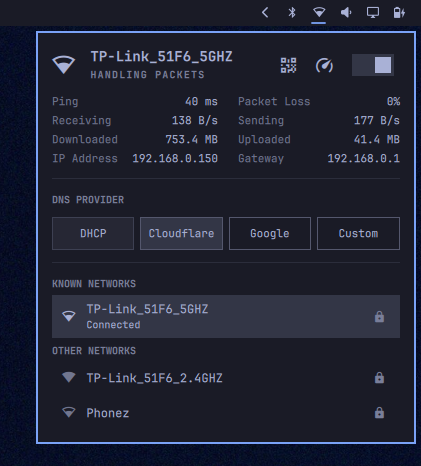
i like the set of features in the wifi section, has the networks speeds directly in there, kde also has it, but its a few clicks away and a bit on the laggier side. the ability to share the wifi password with a qr code is a good addition, built in speed test as well. my isp randomly will have network slowdowns, so i like the existence of the speed test right there. (i think thats also on KDE). speedtest also looks quite nice on this one. (there is also a disk speed test program that looks exactly like this as well)

my upload speed is now very low, not sure why, it happens randomly. so having it in a super accessible location is wonderful.
Same for the ability to quickly change DNS servers. This is a common thing that happens for me, when the DNS resolution task takes a good chunk of time for lord knows what reason and therefore I have to change the DNS server to something else quickly to get internet to be usable. This usually requires me to go to the router configuration page and manually edit things and then restart the router to get it working. But I don't want to make changes to the router configuration when someone else is also using the router. This feature of having the DNS server directly into the WiFi option completely eliminates all the problems that I have. I can switch DNS servers regardless of what others are doing with the network. (sure these can be done using KDE and others, but its more effort to do)
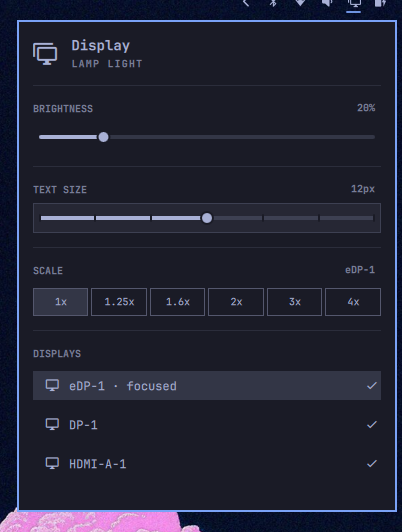
in the brightness option, i can change the brightness of any of my monitors directly from here. All I need to do is is make sure my mouse is on the monitor i want to change brightness of, press the brightness buttons on my laptop or scroll the brightness part on the bar or open the brightness menu in the bar and move the slider. GNOME does not have this feature. KDE does have this feature but it only works with your built-in screen of the laptop when I use the buttons and the scrolling. You can change the brightness of other monitors by only using the slider in KDE. But this one is more cohesive.
On top of that, I do have the ability to just change the scaling of the screen directly from a button. This is useful when Im recording a YouTube video because I prefer my text to be relatively small but while making a YouTube video, I need it to be larger. Usually what I would do is set up a completely different terminal and a different key binding to open that terminal with a large font on it so whenever I make YouTube videos its less cumbersome. Or I will change my font before recording the video just to have everything set up correctly. Sometimes I even have to crop in a video afterwards just to make sure that everything is visible. Meanwhile here I can just press the 2x button, everything becomes bigger and its easier to record a YouTube video. This is a convenience feature that I genuinely think is important.
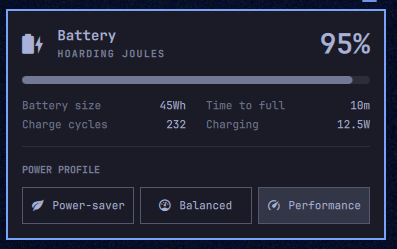
The battery section has one important feature which is charging and discharging wattages. I have a relatively small battery, on top of that, I have a processor that does not have any efficiency cores. So I get pretty bad battery life if I don't monitor my discharge wattage and close programs that is running heavily on the CPU or GPU. It is a lot easier to do this on Omarchy. On KDE what I generally do is open up a program like Btop and then measure wattages. I can also press a key binding to just get a notification on how much battery is being drained at all times.
Hyprland and tiling
I am going to skip through most of the hyprland typical things because it's common on all hyprland systems but one thing to note is that apart from themes, this one has a lot of pre-configured key binding set up and a lot of other rules and things which I could personally do on my own but that would require me to spend multiple hours inside the hyprland wiki, arch wiki and many other places meanwhile I don't have to worry about any of it, because it is already pre-done for me.
I would say that compared to other distributions with window managers and my own personal window manager setups, compared to all of that, Omarchy key bindings are not the greatest but it is still usable enough and the fact that Hyprland now has trackpad gestures which makes it significantly easier to use with a trackpad does completely eliminate a lot of problems that I had faced before with pre-configured window manager setups where you find the key bindings really uncomfortable to use and need to replace everything, which means i waste more time. the ability to use the trackpad and shortcuts combined means i haven't needed to change any bindings that much. thus no time wasted.
The Menu
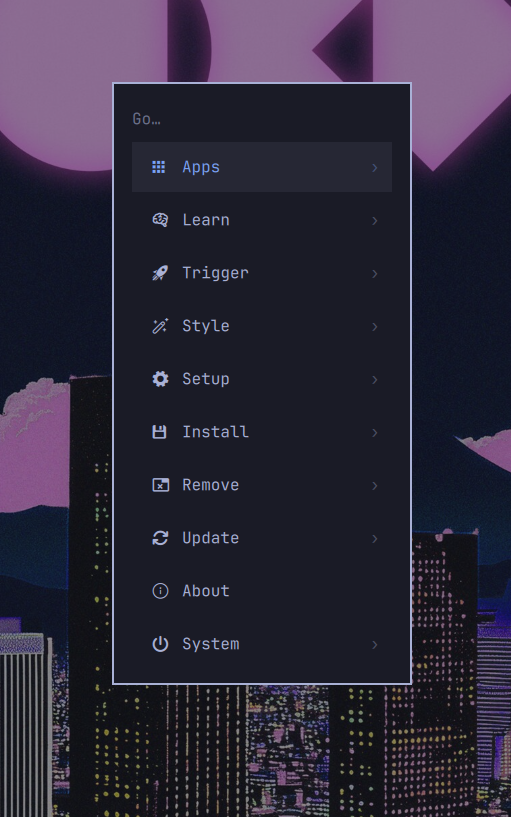
Almost everything in Omarchy is done through this menu system which includes installing, removing packages, installing and removing all the built-in programs that you dont want, adding web apps, settings, changing themes, editing themes, customizing the whole system, all of that can be done inside this small window, which is really useful. This kind of bridges some of the annoyances you would find on a typical window manager setup. Maybe not as good as Noctalia Shell and its implementation of a whole settings page, but very close enough.
I can make quick changes on hyprland without needing to edit any configs, or lets you open configs directly without needing to cd into the folders and opening neovim.
All-in-all makes me want to keep using a tiling system since I dont have the major drawbacks of using a tiling system.
A full explanation of the menu system is on youtube by DHH himself (https://www.youtube.com/watch?v=F7fe9pa8OeE), its almost an hour long, thats how much is there on that menu system.
The niceties
If I have to pick some of my favorite features, it would be
- has disk encryption and it automatically logs you into hyprland without needing any login managers. therefore you only need to type in your passcode once.
- during every update, it creates a snapshot for you to roll back to
- there is a reset option to completely reset the whole system like on windows, so you can give your PC to someone else with fresh omarchy. the reset will delete your disk encryption keys and wipe everything etc. There is also an option to install the OS without adding the usernames and other things, so you can do an OEM install and let the end user set the basic things up
- the ability to pick a font from the list or install a font directly from there and being able to set it everywhere without needing to manually edit everything by hand
- easy access to your main few config files
- the package installer
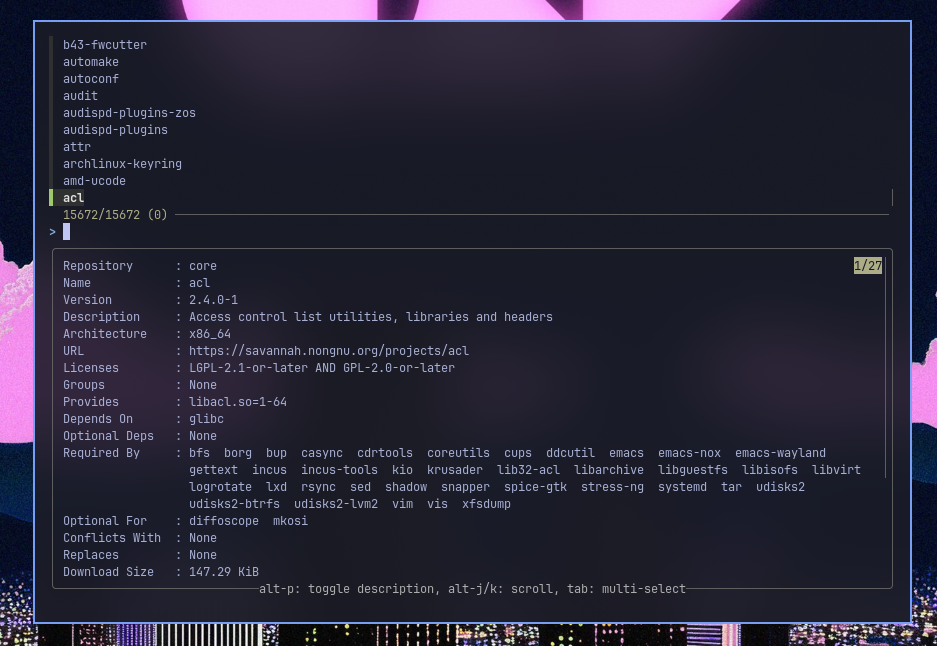
This is so useful, you can search packages, select multiple ones and install em all at the same time. This is some thing I had created for my old sway setup long ago and used it to bits since then. Having the same thing here without me needing to create it is wonderful. - One thing that I like about desktop environments compared to typical window manager setups is that, when you install those, you have the ability to set up fingerprints without any other work or custom config editing, etc etc. All you have to do is go into settings and just enable it. It is equally easy in Omarchy, when I installed the operating system, it automatically prompted me that there is a fingerprint that you could set up. I just pressed a notification and within two seconds I am able to just put my fingerprint in and it works like you would expect in every place. Full stop. I once tried to do the same thing with my sway setup on the same machine on Arch, but for some reason, even though I did the same thing that Arch wiki told me to do, there were some sort of errors where I have to type in my password and also use a fingerprint at the same time. I just don't understand what the problem could be. But here, there is no problems like that. Everything works like you would expect.
- There are many pre-installed software and webapps that I personally use on a daily basis so I don't have to install any of that. like obsidian, kdenlive, OBS studio, discord, whatsapp etc, with some nice simple programs like omawrite, which is a simple scratchpad markdown program to quickly open and type something out, format it etc etc.
-
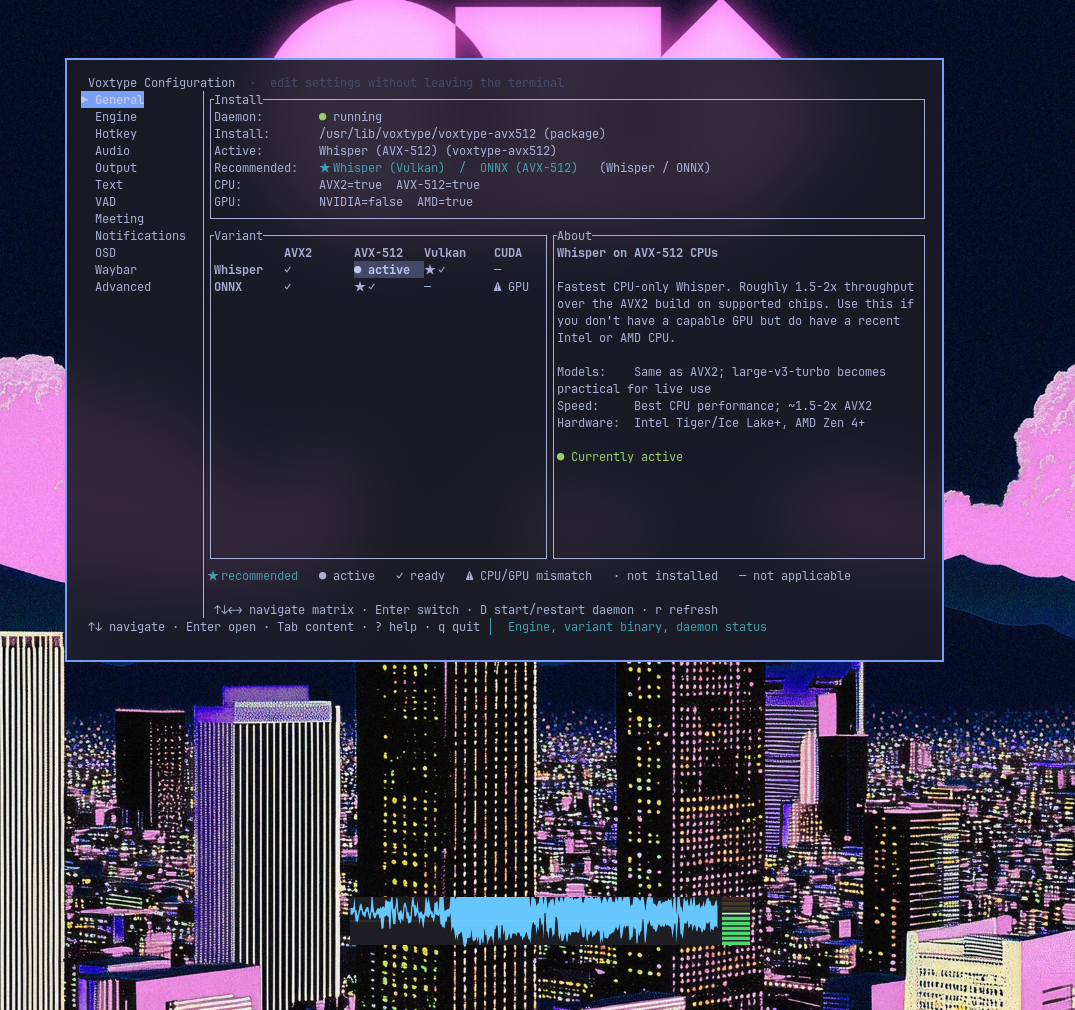 One of the preinstalled programs is VoxType, It is a dictation software where you can just turn it on, start speaking and it will record everything, process it locally and then it comes out as text. And its really, really good. About 80% of the script is written by just me speaking directly onto the computer instead of spending time typing it out. It was so good in fact that I spent about 3 hours at night from 2 -3 am in the morning to go to 5-6 am in the morning trying to set the same program up in Fedora. But unfortunately that was not as easy as on omarchy where you just press one button in the menu system that says dictate, you press that, it installs, configures everything. Meanwhile it was a lot of work to get the correct dependencies met and KDE supports different kind of protocols on wayland compared to Hyprland etc. And some programs were simply missing from the binary so I had to fetch them manually etc. etc. It was a lot of work.
-
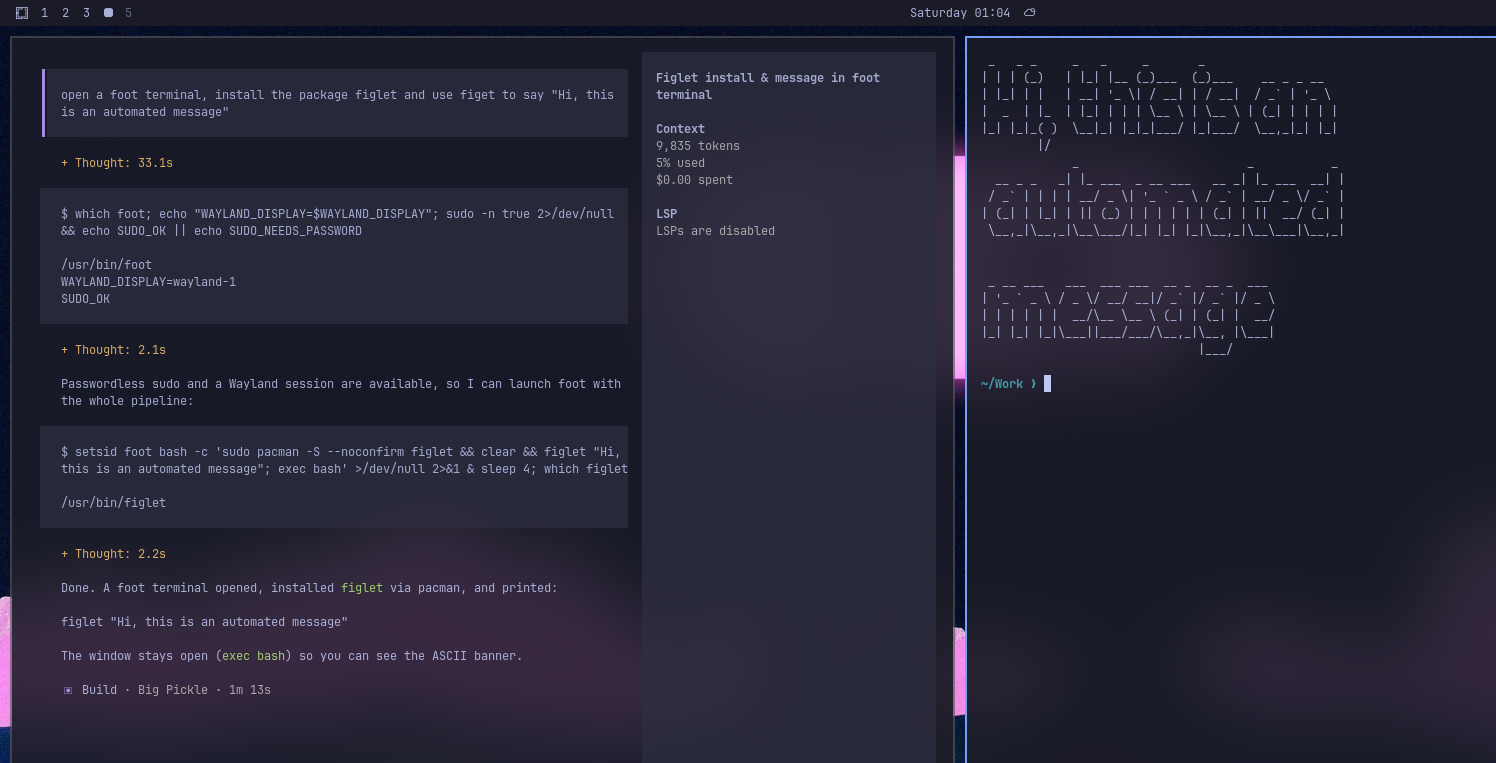 Another point of friction for me at least from trying out window managers again was the fact that I have to spend a lot of time in the effort browsing arch wiki, hyprland wiki and other forums to fix problems or add features, whichever it might be, even if it's a very simple one I'll have to spend a lot of time to set it up. which generally is not the case with desktop environments but here in omarchy there is a program called open code which is an AI based program that can interact with your computer directly and the developers have added some sort of extra feature so it is taught what to do so if it's something related to omarchy or Hyprland there is some sort of instructions already pre-configured for it so it knows what to do. For the things that require me to spend a lot of time, that I am not able to do within 15 to 20 minutes, I just let the program do it for me. I'll just ask what I need to do, it will do all the thinking, look up all the wikis and then it will give me an answer. it can be set up to just tell me an answer or I can also set it up to execute that answer directly. In this image I told it to open a terminal, install the package and then use the package to run an output and it does all of that without any issues. So for things that I dont want to spent time on, it will look everything up, apply changes, check for errors, if there are errors, it fixes them automatically, all while I can go eat food, shower etc etc. I know you guys hate AI and what not cus thats part of your personalities and lifestyle now, i think its useful, i waste less time like a nerd trying to figure it out, let the machine take care of it while i do things thats more worth my time.
-
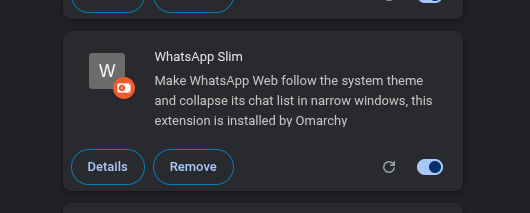 the default chromium browser had an pre installed extension i never knew about, WhatsApp is annoying to use on a browser cus the chat list window is sooo wide and immovable, its nice to know about the existence of this extension which solves that problem. when i logged into whatsapp on omarchy, i thought whatsapp finally updated the website to make it more usable, but nope, just omarchy team's extensions.
- Using the built-in open code AI system, every time a program crashes, you get a notification asking whether you want to use that error messages and crash logs and send it to open code for letting it figure out what the hell happened and giving you a solution. A lot of people do that manually by opening ChatGPT on a browser. So having it part of your system, integrated well seems like a good idea compared to just finding the errors manually and then using some AI platform on a browser.
- Maybe last but not the least just basic programs like the screen recorder that is built in or the screenshot tool that is built in All of them seem to do everything I need it to do, be it annotations in screenshots, or quick video recording with microphone audio etc. it is not as good as KDE but it is very close enough.
- Yeah, I forgot to include one important bit. Omarchy has their own repositories. They are not using any of the arch repositories. they have their own other repositories hosted in cloudflare servers and is so extremely quick. So extremely quick that even regular Indian mirrors simply cannot match. I have used Arch for about 8 years and I have to admit, every once in a while you have to redo the mirrorlist to get it working again. This is just so quick. It's almost mind-numbingly quick.
things i havent tested or need time to figure out
- Since the OS is on their own repository, the operating system is apparently one month behind normal mirrors and it's supposed to be more stable. I am not entirely sure how that will pan out.
- omarchy is designed to be very quick and easy to do development. It has one click installations for a lot of programming related stuff and it also keeps everything updated etc etc. I am not a programmer therefore I have not checked any of this. It is supposed to be significantly faster and easier to use than other distributions.
- Similar to the programming one, there is also built-in options for AI coding stuff like claude code and other programs like OpenAI codex etc. Many people use that for development. Some companies even force developers into using that. I have personally heard about stories of people getting fired because they did not use the chat GPT AI that they were provided to use. So having an option for that is also very nice. It is not forced into you. You can skip it very easily if you dont want to. As I mentioned I don't do programming, therefore I don't really need claude and other AI coding helpers so I haven't been able to test any of it.